
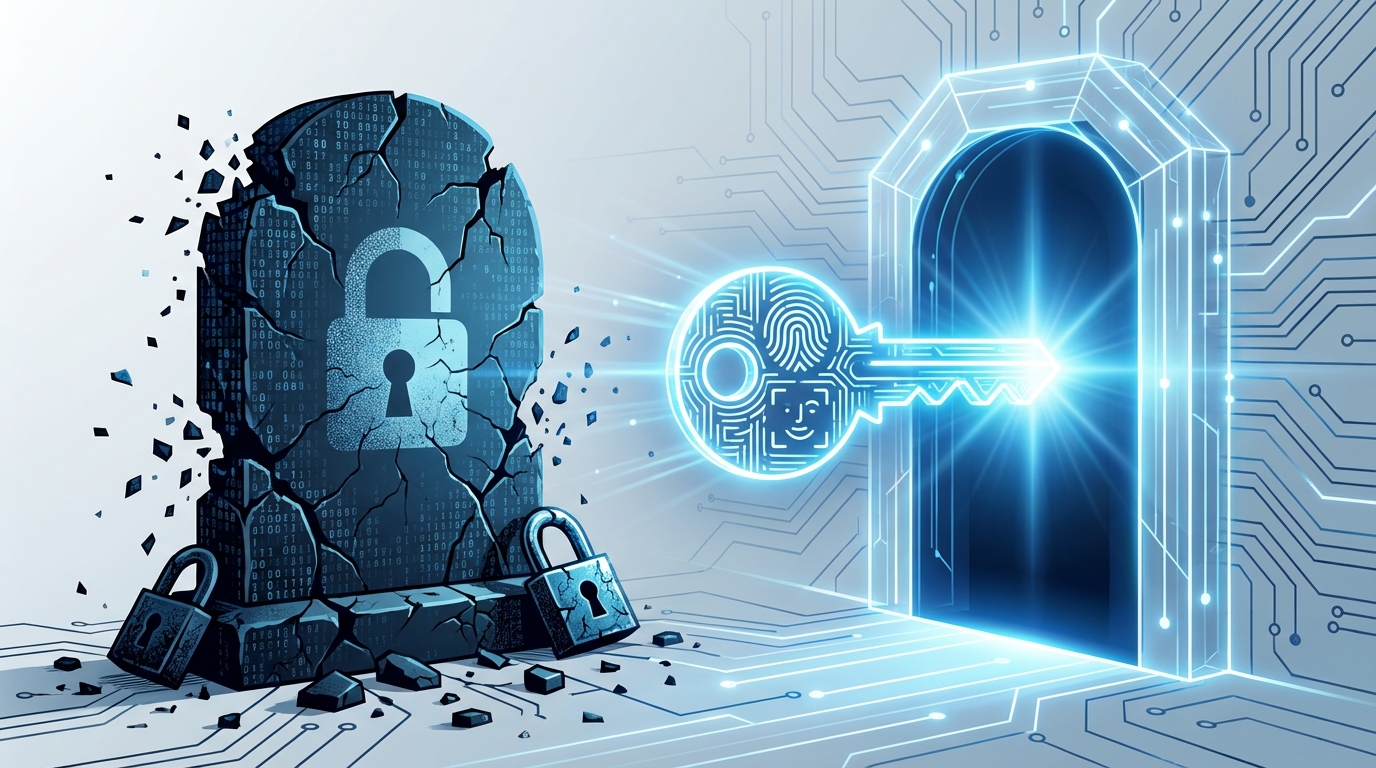

Most people still think a “strong” password with some random symbols is good enough. I learned the hard way that the whole password model is flawed. The problem is not that your passwords are weak. The problem is that passwords themselves are weak.
Passkeys fix the core design flaw. In short: a passkey is a cryptographic key pair stored on your device. When you log in, the site proves you have the private key (usually with biometrics or a PIN) without ever seeing it. Nothing to steal, nothing to phish, nothing to reuse. If you care about security and sanity, your long‑term move is simple: migrate critical accounts to passkeys, keep a password manager as a backup layer, and gradually reduce your password surface area.
What passkeys actually are (and why passwords cannot be “fixed”)
The usual advice is “use a password manager, enable 2FA, do not reuse passwords.” That is damage control on a broken model.
A password is:
– Shared: you know it, the site (or its hash) knows it.
– Reusable: you type the same string again and again.
– Phishable: an attacker only needs to trick you once.
– Centralized risk: 1 database breach can expose millions.
A passkey is:
– A public / private key pair.
– Public key sits on the server.
– Private key lives only on your device or secure cloud-backed vault.
– Authentication happens via a cryptographic challenge-response.
You never “send” your secret. The server sends a challenge. Your device signs it with your private key. The server tests the signature with your public key. Job done.
Passwords are shared secrets. Passkeys are non‑shared cryptographic proofs. That single difference removes entire classes of attacks.
| Aspect | Passwords | Passkeys |
|---|---|---|
| Stored on server | Hash of your password | Public key only |
| Stored on client | Your memory or password manager | Private key in secure hardware / OS store |
| Phishing risk | High | Very low (domain-bound) |
| Reuse across sites | Common and dangerous | Impossible by design |
| Brute-force viability | Offline cracking of hashes possible | Private key is never exposed for cracking |
Passkeys sit on top of WebAuthn and FIDO2, which are not new experiments. They are standards built by people who got tired of patching holes around passwords and OTP codes.
How passkeys work in practice
Once you see a full passkey flow, it becomes clear why this model is cleaner.
1. Registration (creating a passkey)
When you “create a passkey” on a site that supports it:
- The site asks your browser / OS to create new credentials for its domain.
- Your device generates a new asymmetric key pair (public + private).
- The private key is stored in a secure enclave or protected key store.
- The public key and some metadata are sent to the server and saved with your account.
You confirm this with something you already use:
- Biometric (fingerprint, face scan)
- Local PIN or system password
- Security key touch (YubiKey, etc.)
Each site gets its own unique key pair. There is no “master password” that can spill everywhere.
2. Authentication (logging in with a passkey)
Login is where you feel the difference.
- You go to example.com and choose “Sign in with passkey”.
- The site asks your device for an assertion signed with your private key.
- Your OS prompts you: fingerprint, Face ID, Windows Hello, or device PIN.
- If approved, the device signs the server’s challenge.
- The server uses your stored public key to verify the signature.
There is no password. No OTP code from SMS. No copy‑paste from an authenticator app.
The domain is baked into the passkey credentials. A fake “examp1e.com” cannot reuse your real example.com key.
3. Device sync and portability
Passkeys are supposed to be bound to devices, but you still need portability. That is where sync comes in.
Common sync methods:
- Apple: iCloud Keychain syncs passkeys across your Apple devices.
- Google: Your Google account syncs passkeys on Android and Chrome.
- Microsoft: Windows + Edge / Microsoft account integration.
- Third-party managers: 1Password, Bitwarden, Dashlane and others adding passkey sync.
This raises a real-world concern: vendor lock-in. If all your passkeys stay inside one vendor’s garden, your choice of hardware is dictated by your lock‑in, not your preferences.
Therefore, resist the urge to rely on only one sync silo. A practical pattern:
- Use OS-level passkeys on primary devices for convenience.
- Store a subset of passkeys in a cross‑platform password manager that supports them.
- Keep at least one hardware key (FIDO2) registered on high‑value accounts.
Why passwords are beyond saving
Security people have spent decades stacking patches on passwords:
- Rules like “must have 1 number, 1 symbol, 1 uppercase.”
- Forced rotation every 60 or 90 days.
- Blacklists like “do not use password123.”
- 2FA by SMS, email codes, TOTP apps, push prompts.
These patches introduce their own problems.
Human memory vs entropy
Strong passwords are long and random. Human memory is neither.
So users:
- Reuse passwords across sites.
- Use predictable patterns (Summer2024!, Winter2024!, etc.).
- Store passwords in plain text files or unencrypted notes.
Password managers help, but they do not solve phishing and they introduce a single point of failure.
Phishing is built into the password model
Phishing exists because you can hand over the exact secret the attacker needs. That is how the design works.
Once you train people to type passwords and 6-digit OTP codes into web forms, they will also do that on fake pages that look convincing.
Passkeys remove that vector:
- The key is never typed.
- The browser verifies the origin (domain) against the credential.
- The user just confirms on a system prompt, not on a web page.
Phishing fights your users’ psychology. Passkeys bypass it by not asking users to handle secrets at all.
Server breaches and credential stuffing
With passwords, if one site is breached:
- Password hashes leak.
- Attackers crack weak ones offline.
- They test stolen credentials on other sites.
This works because users reuse passwords.
With passkeys:
- Breached site leaks your public key, which is not secret.
- It cannot be used to log in to that site or others.
- There is nothing to “stuff” across different services.
Passkeys in real services: what has changed already
Support is no longer theoretical. Large platforms already offer passkeys.
Where passkeys are live today
Examples of services that support passkeys:
- Google accounts
- Microsoft accounts
- Apple ID
- GitHub
- PayPal (in many regions)
- Dropbox
- Passkey support in password managers like 1Password, Bitwarden, Dashlane
For these, you can add a passkey and, in many cases, set it as primary.
When major identity providers prefer passkeys over passwords, the direction of travel is obvious.
How WebAuthn and FIDO2 fit in
Passkeys are branding. The machinery comes from:
- FIDO2: A set of standards for strong authentication, including:
- Client to Authenticator Protocol (CTAP) for hardware keys.
- WebAuthn for browsers and web applications.
- WebAuthn: The browser API that sites use to create and use passkeys.
When you see “Sign in with security key” or “Use device passkey,” you are using the same core tech.
Security analysis: strengths, risks, and real limits
No authentication method is magically perfect. Passkeys close several big security gaps, but they do not fix everything.
Threats that passkeys handle well
- Credential reuse: Not possible, every site has its own key pair.
- Database breach reuse: Public keys leaked, no logins gained.
- Standard phishing: Fake login forms cannot collect passkeys.
- Brute force on secret: Private key stays in hardware, not exposed.
Threats that remain
- Device theft: If someone steals your laptop or phone and can unlock it, they might authenticate as you.
- Malware on endpoint: Keyloggers and token stealers can still abuse “trusted” sessions.
- Social engineering: Attackers can still trick support desks to reset access.
- Account recovery channels: Weak recovery via email or SMS can bypass even strong login methods.
So you still need:
- Strong device security (disk encryption, updated OS, screen lock).
- Awareness about support scams and fake “account recovery” calls.
- Hardened recovery setups on critical services.
How to migrate: turning password chaos into a passkey‑first setup
If you have used the web seriously for years, you probably have hundreds of credentials. You will not flip a switch overnight. You need a migration plan.
Step 1: Stabilize your password situation first
Before you add passkeys, fix the current mess.
- Use a reputable password manager:
- Bitwarden, 1Password, KeePass variants, Enpass, etc.
- Generate unique, long passwords (20+ chars) for important accounts.
- Turn on 2FA on critical services:
- Prefer TOTP, hardware keys, or passkeys over SMS.
- Audit email addresses used for recovery and logins.
This stabilizes your base. If your passkey access breaks, you can still fall back to passwords and 2FA.
Step 2: Identify high-value targets
Not all accounts are equal. Focus first on those that can ruin your week.
- Primary email addresses (Gmail, Outlook, Fastmail, etc.).
- Cloud storage (Drive, iCloud, OneDrive, Dropbox).
- Financial accounts (banks, PayPal, crypto exchanges, brokerages).
- Developer / infra accounts (GitHub, GitLab, cloud providers, domain registrars).
Create a short list. These should get passkeys and hardware-backed security first.
Step 3: Enable passkeys where possible
For each high-value service:
- Open security settings.
- Look for:
- “Passkey”
- “Security key”
- “FIDO2” or “WebAuthn”
- Add at least:
- One device-bound passkey (e.g., phone biometric).
- One hardware key as backup, if supported.
Treat passkeys the way old-school admins treated SSH keys: primary access via keys, password strictly as fallback.
Step 4: Decide your passkey “home base”
You need a strategy for where your passkeys live most of the time.
Common options:
- OS keychain centric
- Use Apple, Google, or Microsoft ecosystems as primary storage.
- Good if you live firmly in one vendor’s stack.
- Password manager centric
- Use a cross‑platform password manager that supports passkeys.
- Good if you move across OSes regularly.
- Hardware key centric
- Use FIDO2 keys as main authenticators where possible.
- High security, but not every site is flexible enough yet.
You can mix these. For example:
- Use platform passkeys on mobile where they work smoothly.
- Back them up with a cross‑platform manager.
- Register a couple of hardware keys on the most critical accounts.
Step 5: Reduce password exposure gradually
Once passkeys are working for core services:
- Set passwords on those accounts to long random strings stored in your manager.
- Stop typing those passwords manually; treat them as recovery only.
- Whenever a site offers “Upgrade to passkeys” or “Add passkey,” do so.
- Phase out SMS-based 2FA where passkeys or hardware keys are active.
You will still live in a hybrid world for years. That is fine. The goal is slow, deliberate reduction of password exposure.
Designing passkey support for your own product
If you run a SaaS platform, a community, or a hosting service, you have a decision to make. Ignoring passkeys simply means your platform stays on weaker security while competitors move ahead.
Why you should offer passkeys to your users
From a service operator viewpoint:
- Less password reset load for your support team.
- Fewer account takeovers via credential stuffing or phishing.
- Better user experience for returning logins.
- Signal to security‑aware users that you are serious about authentication.
You do not need to remove passwords overnight. Start by adding passkeys as an additional method.
Implementation basics with WebAuthn
Adding WebAuthn support has two key flows: registration and authentication.
Registration:
- User is logged in via password or social login.
- User clicks “Add security key” or “Add passkey.”
- Server generates a registration challenge and passes it to WebAuthn in the browser.
- Browser talks to authenticator (platform or hardware) and returns an attestation.
- Server validates and stores:
- Public key
- Credential ID
- User handle / account ID
- Counter data
Authentication:
- On login, user selects “Sign in with passkey.”
- Server generates a challenge linked to the account or discovery process.
- Browser calls WebAuthn get() and gets back an assertion signed by the private key.
- Server verifies the signature with stored public key and logs the user in.
Most modern web stacks now have libraries to avoid raw protocol handling. Pick well-maintained libraries, keep up with their security advisories, and write tests around your auth logic.
Web UX considerations
User experience around passkeys is still evolving. Some patterns:
- Login page should show:
- “Continue with passkey” option where supported.
- Fallback “Sign in with password” if users have not migrated.
- Account settings should:
- List active passkeys (with metadata like device, last used).
- Allow removal and renaming of passkeys.
- Encourage adding at least two authenticators.
- Recovery flows must be clear:
- What happens if a user loses all devices?
- What data do you ask to verify identity?
Strong login is worthless if your support team resets accounts after one convincingly written email.
Passkeys in web hosting, servers, and digital communities
If you run infrastructure, you already think in terms of keys. Passkeys are simply bringing that model to end users.
Hosting control panels and admin dashboards
Hosting dashboards are prime targets for account takeover:
- They control DNS and domains.
- They control server instances.
- They often handle billing.
If your hosting platform still relies on passwords + weak 2FA, you are giving attackers a massive blast radius.
Steps to improve:
- Add WebAuthn as an option for all admin and customer logins.
- Encourage passkeys for:
- Reseller accounts
- Root-level admin accounts
- Staff support dashboards
- Use hardware keys for internal staff wherever possible.
Digital communities, forums, and membership sites
Communities differ in one key way: they rely on identity and reputation. Account takeover hits more than just one person. It can:
- Damage trust in moderation.
- Spread scams from high reputation accounts.
- Leak private messages.
Passkeys lower the attack surface for:
- Moderators and admins
- Long‑time, high‑trust members
- Any user who wants stronger protection
Forum software and community platforms should:
- Expose “Add passkey” in profile security settings.
- Integrate with browser UX, not hide it deep under obscure settings.
- Offer clear guidance when someone loses access to their passkey devices.
Developers and SSH vs passkeys
Many developers are already used to SSH keys for server access. Passkeys are conceptually similar:
- Key pairs instead of passwords.
- Private key never leaves your device.
- Public key sits on the server or service.
For a dev, the mental switch is easy. The pain point is often institutional inertia:
- Legacy identity providers stuck on passwords.
- Internal tools with no WebAuthn support.
- Security policies written for older models.
Update your internal policies to treat passkeys and hardware keys as first‑class authentication methods, not as exotic add‑ons.
Trade-offs, myths, and the annoying edge cases
Any worthwhile security shift comes with friction. Passkeys are no exception.
Myth: “Passkeys lock me into one device vendor”
Reality:
- Platform passkeys (iCloud, Google, Microsoft) are tied to vendor ecosystems.
- Hardware keys and cross‑platform managers reduce that vendor dependence.
- Standards are open; implementation is where vendors try to keep you close.
If you run a business, do not accept a single-vendor trap. Build your authentication posture around open standards and cross‑platform options.
Myth: “If I lose my phone, I lose all my accounts”
You lose accounts today if you lose your phone and it hosted your authenticator app, email, and SMS 2FA. Device loss is not a new problem.
Mitigations with passkeys:
- Use multi-device sync for passkeys.
- Register more than one authenticator (e.g., phone + hardware key + laptop).
- Keep recovery codes in secure offline storage for critical accounts.
Losing a device is a recovery problem, not a design flaw of passkeys. Solve it with redundancy, not with weaker authentication.
Myth: “Passkeys are more complex than passwords”
From a user view:
- Passwords require:
- Remembering or managing them.
- Typing them on every login.
- Responding to 2FA prompts, codes, or email links.
- Passkeys require:
- Touching a sensor or key.
- Letting the browser do the rest.
The complexity is mostly on the implementer side. For the user, the right UI makes passkeys feel simpler than passwords.
Real edge cases you must plan for
Edge cases that still hurt:
- Shared devices:
- If a family shares a tablet, authenticating via device biometrics can cross identities.
- Legacy browsers and platforms:
- Old browsers or locked‑down corporate builds may not support WebAuthn well.
- Compliance-driven environments:
- Some regulations lag behind and still codify passwords and periodic rotation.
Design your authentication stack to detect capabilities and fall back gracefully, not to assume every client is modern.
Practical setups: what to do right now
To make this less abstract, here are concrete templates that actually work.
If you are an individual power user
Target state for the next 6 to 12 months:
- Use a reputable password manager as your source of truth.
- Turn on passkeys for:
- Primary email
- Cloud storage
- Banking and financial services (where possible)
- GitHub or similar dev accounts
- Own at least 1 or 2 hardware keys and add them on critical accounts.
- Lock your devices with strong PINs or passwords and enable full-disk encryption.
If you run a small hosting or SaaS platform
Next 6 to 18 months:
- Add WebAuthn-based logins for:
- Internal admin interfaces
- Customer dashboards
- Require at least one strong factor (passkey or hardware key) for:
- Support staff who can access customer data or DNS controls
- Resellers or resellers’ staff accounts
- Harden recovery and support processes:
- Do not reset access based on easily scraped data (name, email, last invoice).
- Add clear, logged, and documented procedures for identity proof.
If you manage a developer-heavy team
Over the next few quarters:
- Use SSH keys for infrastructure. Remove password SSH where possible.
- Use hardware-backed keys or passkeys for:
- Git hosting
- Cloud consoles (AWS, GCP, Azure)
- CI/CD control panels
- Define an internal standard:
- What devices must be enrolled.
- How recoveries are handled.
- What to do when a device is lost or staff leaves.
Passwords will not vanish overnight, but they have already lost the design argument. Your only real choice is how soon you reduce your dependence on them.